
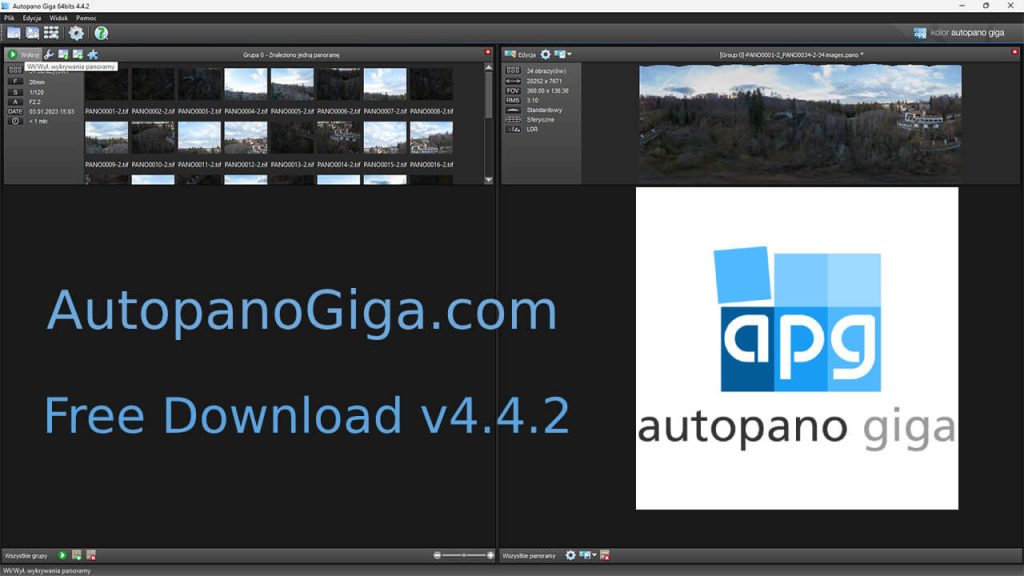
Autopano Giga 4.4.2 – The Final Archive
The legendary panoramic stitching software is now free (discontinued). Download the official installer, get the license key, and fix Windows 11/macOS crashes.
Why is Autopano Giga Still the Best?
Despite being discontinued by GoPro in 2018, Autopano Giga 4.4.2 remains the gold standard for panoramic photographers. Unlike simple stitching tools, APG offers professional features like Anti-Ghosting (removing moving people), Exposure Fusion (HDR), and Multiple Projection Modes (Little Planet, Rectilinear).
This archive exists to help you run Autopano on modern systems like Windows 11 and macOS Sonoma (M1/M2/M3), where the original installer might fail.
System Requirements
| Component | Minimum Requirements | Recommended (Gigapixel Work) |
|---|---|---|
| Operating System | Windows 7 / macOS 10.9 / Linux | Windows 10/11 or macOS Sonoma (M1/M2) |
| Processor (CPU) | Dual-core 2 GHz | Quad-core or higher (Limit to 8 threads on Win 11) |
| RAM (Memory) | 4 GB | 16 GB or 32 GB for HDR stitching |
| Graphics (GPU) | OpenGL 2.0 compatible | NVIDIA dedicated GPU (2GB VRAM+) |
| Storage | 1 GB free space | SSD (NVMe recommended for speed) |
Get Autopano Giga 4.4.2 for Your OS
Access the secure archive. Includes Windows 64-bit, macOS (Intel/M1), and Linux installers. Official license key included on the next page.
Common Installation Errors?
Since Autopano Giga was discontinued in 2018, it may crash on modern systems. Do not worry, we have the fixes.
- Windows 11: Silent crash on startup (no error message).
- macOS: “Installation Failed” at the final step.
- License Key: Key not working or invalid.
How to Fix These Issues
Read our step-by-step guide to fix the “libeay32.dll” error on Windows and the Plugin error on macOS Sonoma/M3.
Best Modern Alternatives in 2025
PTGui Pro
The current industry standard. Extremely fast but expensive.
Insta360 Studio
Free with camera. Best for 360 videos & photos.
Hugin
Completely free and open-source. Hard to learn.
Why Photographers Still Choose Autopano in 2025
1. Advanced Anti-Ghosting Technology
One of the biggest challenges in panoramic photography is moving subjects—cars, pedestrians, or clouds. Autopano Giga 4.4 excels with its proprietary anti-ghosting algorithm. Unlike basic stitchers, it intelligently analyzes overlapping areas and chooses the best pixels to erase “ghost” artifacts automatically. For complex scenes, the Manual Masking Tool allows you to force the software to keep or remove specific people with simple green and red markers.
2. Gigapixel & 360° Virtual Tour Support
Autopano Giga isn’t just for wide landscape shots. It is optimized for gigapixel panoramas composed of hundreds or thousands of images. The software can handle massive file sizes and export to .PSB or .KRO formats. Furthermore, it supports full 360° x 180° spherical stitching, making it the perfect free tool for creating virtual tours for real estate or Google Street View.
3. The Exclusive Neutralhazer® Filter
Atmospheric haze often ruins long-distance mountain or city shots. Autopano Giga includes a unique plugin called Neutralhazer®. This tool analyzes the depth of the image and removes fog and haze without affecting the foreground contrast. This feature alone makes Autopano superior to many paid alternatives even years after its discontinuation.
4. Color Correction & Exposure Fusion
Shooting in manual mode is ideal, but sometimes exposure varies between shots. Autopano’s Color Anchors system allows you to define a reference image, and the software will automatically harmonize the color and exposure of the entire panorama to match it. It also supports true HDR stitching through Exposure Fusion, blending bracketed shots for high dynamic range results.
What the Community Says in 2025
“Still running stable on my MacBook Pro M3! It does exactly what I need after not getting reasonable results from PTGui. Kudos to the original developers!”
– Radim, Panoramic Photographer
“The dll fix worked perfectly for Windows 11. Autopano is the only software that correctly stitched my drone shots with featureless skies.”
– Karol, Drone Operator
“I’ve used Hugin and ICE, but Autopano’s anti-ghosting is on another level. So glad this archive exists to keep the software alive.”
– Jonathan, Architect
Frequently Asked Questions
General & Licensing
1. Is Autopano Giga truly free?
Yes. Autopano Giga was discontinued by GoPro (Kolor) in 2018. Before shutting down, the developers released a generic license key for everyone to use. The software is no longer updated but is free to download and activate fully.
2. Can I use it for commercial projects?
Yes. Once activated with the official key, the trial watermarks are removed. You can use the software to create commercial panoramas, virtual tours, and gigapixel images for clients.
3. What is the difference between Pro and Giga?
Autopano Giga includes all features of the Pro version but adds advanced tools: Masking Tool (for anti-ghosting), Exposure Fusion (HDR), and plugins like Neutralhazer. We only host the Giga version as it is superior.
4. Is the file safe to install?
Absolutely. We host the original, untouched installer files released by Kolor. There are no cracks, keygens, or modified binaries. You activate it using the legal text-based serial key.
Technical Support
5. Why does it crash on Windows 11?
The crash is caused by an outdated OpenSSL library file named libeay32.dll included in the installation folder. To fix it, simply go to the installation directory and delete this file.
6. Does it support Apple Silicon (M1/M2)?
Yes, it runs via Rosetta 2 translation. However, the installer often fails unless you click “Customize” and uncheck the Adobe plugins (Lightroom/Bridge) during installation.
7. Can I process RAW files?
Autopano supports older RAW formats. For modern cameras (like Sony A7IV), we highly recommend converting your RAW files to 16-bit TIFF in Lightroom before importing them into Autopano for the best results.
8. Does the Lightroom plugin work?
The direct “Export to Autopano” plugin is broken in newer Adobe CC versions. The workaround is to export your images to a folder first, then drag-and-drop them into Autopano manually.