Finding genuinely capable panorama stitching software without paying $300+ for commercial licenses can be challenging. Most “free” stitching applications found via Google search fall into frustrating traps: they stamp unsightly watermarks across your final render, severely downscale resolution, limit multi-row stitching, or lock essential 16-bit TIFF export behind a paid wall.
The Fast Answer: For the vast majority of landscape photographers and 360° virtual tour creators, Autopano Giga 4.4.2 remains the best free panorama stitcher overall. Originally priced at $400, it is now 100% free and legal via public license keys released by GoPro, featuring automated SIFT control point detection, multi-row alignment, and zero watermarks. For open-source purists and Linux users, Hugin provides unmatched mathematical precision and manual control points. For quick, casual Windows landscape panoramas, Microsoft ICE 2.0.3 remains an unbeatable lightweight utility.
- 1. Quick Evaluation — The State of Free Panorama Software in 2026
- 2. Feature Comparison Matrix — 7 Best Free Panorama Tools
- 3. Deep Dive Reviews of the Top 7 Free Panorama Stitchers
- 4. Key Technical Trade-Offs Between Free and Commercial Software
- 5. Step-by-Step Guide to Getting Started Free With Autopano Giga
- 6. How to Bypass RAW Compatibility Limits on Abandoned Software
- 7. Frequently Asked Questions
Quick Evaluation — The State of Free Panorama Software in 2026
Panorama stitching has evolved into three distinct categories of software: commercial industry flagships (like PTGui Pro), active open-source projects (like Hugin), and legendary commercial abandonware that has been made permanently free to the community (like Autopano Giga 4.4.2 and Microsoft ICE).
When selecting a free stitcher, you must ensure that your tool satisfies three non-negotiable criteria:
- Zero Export Watermarks: The software must never overlay logos, semi-transparent grids, or promotional banners on your exported JPEG or TIFF files.
- Full Resolution Export: It must not cap your output dimensions at 4,000 pixels. High-resolution gigapixel and architectural panos routinely exceed 15,000 to 50,000 pixels wide.
- Spherical and Multi-Row Capability: Basic linear stitchers fail when images are shot in multiple horizontal tiers (multi-row) or when capturing full 360° × 180° equirectangular spheres for virtual reality and interactive tours.
Feature Comparison Matrix — 7 Best Free Panorama Tools
The table below provides a rigorous side-by-side comparison of the top seven watermark-free tools available for Windows, macOS, and Linux in 2026.
| Software Name | Primary Strengths | Supported OS | Multi-Row & 360° Spheres | Max Export Resolution | Learning Curve |
|---|---|---|---|---|---|
| Autopano Giga 4.4.2 | Best overall speed, automated SIFT detection, gigapixel support | Windows 10/11, macOS, Linux | Full Multi-Row & 360° Spherical | Unlimited (Gigapixel scale) | Low – Moderate |
| Hugin Panorama | Open-source, deep manual control point editing, cross-platform | Windows, macOS, Linux, BSD | Full Multi-Row & 360° Spherical | Unlimited (Gigapixel scale) | Steep |
| Microsoft ICE 2.0.3 | Fastest Windows linear stitching, smart edge completion | Windows 7, 10, 11 (64-bit) | Planar, Cylindrical, Basic Spherical | Very High (Hundreds of MP) | Very Low |
| Insta360 Studio 2026 | Automated AI optical flow, invisible selfie stick removal | Windows 10/11, macOS Apple Silicon | Dual-Fisheye 360° Equirectangular | Native 8K/11K sensor limit | Very Low |
| GIMP + Stitcher Plugin | Integrated into open-source photo editing suite, zero cost | Windows, macOS, Linux | Linear and Single-Row only | Limited by RAM | Moderate |
| OpenPano (Open Source) | Ultra-fast C++11 algorithmic stitching for developers | Linux, macOS, Windows (CLI) | Planar and Cylindrical | Hardware dependent | High (CLI based) |
| Camera OEM Utilities (Canon/Nikon) | Native RAW lens profile corrections without subscription | Windows, macOS | Single-Row Linear only | Standard sensor resolution | Low |
Deep Dive Reviews of the Top 7 Free Panorama Stitchers
Here is an in-depth operational review of each free panorama stitching software, detailing real-world performance, interface workflows, and technical trade-offs.
1. Kolor Autopano Giga 4.4.2 — The Best Free Stitcher Overall
Editor’s ChoiceOriginally sold by French imaging pioneer Kolor for $400, Autopano Giga was the gold standard in professional panoramic and gigapixel stitching alongside PTGui. Following GoPro’s closure of Kolor in 2018, GoPro published official universal license keys, making Autopano Giga permanently free for commercial and personal use.
Autopano Giga’s signature feature is its proprietary implementation of David Lowe’s SIFT (Scale-Invariant Feature Transform) algorithm. You simply drag in 5, 50, or 500 images, click Detect, and the software groups images into panoramas automatically, calculates focal lengths, and balances exposure and color across seams with exceptional accuracy.
PROS
- Automated multi-row and 360° equirectangular stitching
- World-class color blending and anti-ghosting masking engine
- Completely free forever with official universal keys (zero watermarks)
- Handles multi-gigapixel gigapan projects effortlessly
CONS
- Development halted in 2018; modern camera RAW files require TIFF conversion
- Requires minor registry/DLL configuration on Windows 11 and macOS Sequoia
2. Hugin — The Most Powerful Free Open-Source Option
Best Open-SourceFor open-source advocates and photographers who demand granular control over mathematical projection models, Hugin is an indispensable tool. Built on Helmut Dersch’s Panorama Tools (libpano13), Hugin provides unmatched control over lens calibration, control point optimization, and photometric adjustments.
Where automated stitchers fail on complex architectural scenes or challenging drone mosaics, Hugin allows you to manually inspect and place control point pairs down to the exact pixel. It integrates advanced command-line tools including enblend and enfuse for exposure blending and multi-bracketed HDR stitching.
PROS
- 100% Free and Open Source (GPL License) with active community updates
- Runs natively across Windows, macOS, Linux, and BSD
- Unrivaled manual control point editor for resolving tricky misalignments
- Advanced multi-bracketed HDR exposure fusion via Enfuse
CONS
- Steep learning curve with a dated, technical user interface
- Automatic feature detection can be slow compared to GPU-accelerated tools
3. Microsoft ICE 2.0.3 — The Simplest Free Windows Stitcher
Best for Quick PanosDeveloped by the Computational Photography Group at Microsoft Research, Microsoft Image Composite Editor (ICE) is legendary for its speed and simplicity. Even though Microsoft retired the project in 2021, the final 64-bit release (v2.0.3) runs smoothly on Windows 10 and Windows 11.
ICE’s standout feature is its brilliant Image Completion tool. When stitching handheld panoramas, the resulting canvas often has irregular, wavy black borders. Rather than forcing you to aggressively crop away valuable scenery, ICE uses patch-based texture synthesis to seamlessly fill in sky, water, and foliage edges automatically.
PROS
- Fastest drag-and-drop workflow for wide-angle landscape panoramas
- Smart Image Completion synthesizes missing border edges automatically
- Structured panorama mode supports matrix gigapixel camera rigs
- Very low CPU and memory footprint
CONS
- Windows only; no macOS or Linux versions exist
- Lacks advanced manual control point editing and nadir patching tools
4. Insta360 Studio 2026 — The Best Free Tool for 360 Hardware
Best for 360 CamerasWhile not a traditional multi-shot DSLR stitcher, Insta360 Studio is completely free desktop software for Windows and macOS. If you capture panoramas using dual-lens 360 cameras such as the Insta360 X4, Insta360 ONE RS 1-Inch, or professional Insta360 Pro 2, this app replaces manual stitching entirely.
Insta360 Studio uses AI Optical Flow to stitch dual fisheye lenses into flawless 72MP equirectangular 360° panoramas in seconds, while automatically erasing the mounting pole and tripod base from the nadir. Output files can be exported as 16-bit DNG RAW or full-resolution JPGs ready for virtual tour platforms.
PROS
- Automated AI Optical Flow stitching with zero manual alignment required
- Erases invisible selfie sticks and small tripods automatically
- Hardware-accelerated for Apple Silicon and NVIDIA RTX GPUs
- Completely free with no recurring subscription or export restrictions
CONS
- Dedicated exclusively to dual-lens 360 camera footage (cannot stitch DSLR photos)
5. GIMP with Pandora & Stitching Scripts — All-in-One Open Source
Photo Editor PluginFor designers and photographers who already use GIMP (GNU Image Manipulation Program) as their primary free Photoshop alternative, the Pandora plugin and associated Python-Fu stitching scripts allow you to stitch linear panoramas directly on separate layers without launching an external app.
Pandora works by loading overlapping images into stacked layers, setting layer masks with smooth gradient transitions, and allowing you to manually nudge layers into alignment. While it lacks automatic feature detection, it offers absolute creative control over layer masks and blending curves.
PROS
- Stitches directly inside a full-featured open-source image editor
- Preserves each overlapping frame on non-destructive separate layers
- Available natively on Linux, Windows, and macOS
CONS
- No automatic feature detection; requires manual layer alignment
- Unsuitable for complex multi-row or 360° equirectangular panos
6. OpenPano — Lightweight Algorithmic C++ Stitcher
Developer ChoiceCreated by researcher Guorui Chen, OpenPano is an open-source panoramic stitching program written in pure C++11 with zero external computer vision library dependencies (no heavy OpenCV runtime required). It incorporates feature detection (SIFT), feature matching, bundle adjustment, and multi-band blending into a lightning-fast standalone binary.
OpenPano is primarily operated through the terminal or lightweight command scripts, making it popular among software developers, robotics engineers, and researchers who need automated, headless batch panorama generation on embedded Linux systems or automated server pipelines.
PROS
- Extremely fast, lightweight binary with zero bloated dependencies
- Automated SIFT detection and robust bundle adjustment algorithm
- Ideal for server automation and headless batch stitching
CONS
- Command-line interface; lacks a friendly visual GUI for casual users
- Limited projection geometry compared to full desktop suites
7. Camera OEM Utilities — Native RAW Profile Blending
Hardware BundlesMany photographers overlook the free utility software provided by their camera manufacturer. Canon Digital Photo Professional (DPP), Nikon NX Studio, and Sony Imaging Edge include basic multi-shot stitching or panorama composition utilities specifically tuned to their proprietary camera sensors.
The primary benefit of OEM software is pristine optical correction. Because the manufacturer possesses the exact mathematical optical profiles for proprietary lenses, barrel distortion, vignetting, and chromatic aberration are eliminated before stitching takes place.
PROS
- 100% free with your camera body without third-party watermarks
- Exact lens profile corrections and proprietary RAW color science
CONS
- Restricted to single-row linear sweeps; cannot assemble 360° spheres
- Stitching algorithms are slow compared to dedicated stitching engines
Key Technical Trade-Offs Between Free and Commercial Software
While free tools like Autopano Giga and Hugin can produce image quality identical to expensive paid packages, choosing free software comes with specific trade-offs that commercial photographers should evaluate.
| Workflow Dimension | Free Tools (Autopano Giga / Hugin) | Commercial Standard (PTGui Pro) |
|---|---|---|
| Modern Camera RAW Support | Requires pre-converting RAW files to 16-bit TIFFs via Adobe DNG Converter | Native real-time RAW decoding for Sony, Canon, Nikon, Fuji, and Leica |
| GPU Acceleration | CPU multi-threading only (Older OpenCL/CUDA can crash on modern GPUs) | Full OpenCL / Metal GPU acceleration (renders gigapixel panos in seconds) |
| Handheld Nadir Patching | Manual masking or external retouching in Photoshop / Affinity Photo | Built-in Viewpoint Correction calculates perspective shift automatically |
| Operating System Compatibility | Requires community registry tweaks and compatibility settings on Win 11 / Mac | Regular official updates for the latest Windows and macOS versions |
| Commercial Licensing Cost | $0 (Free forever) | €319 one-time commercial perpetual license |
Step-by-Step Guide to Getting Started Free With Autopano Giga
To get professional, watermark-free results immediately without spending a penny, follow this streamlined workflow using Autopano Giga 4.4.2:
- Download and Unlock: Download the official Autopano Giga 4.4.2 installer from our official archive. During installation or upon initial launch, enter the official public license key provided in our license key directory to unlock full unrestricted functionality.
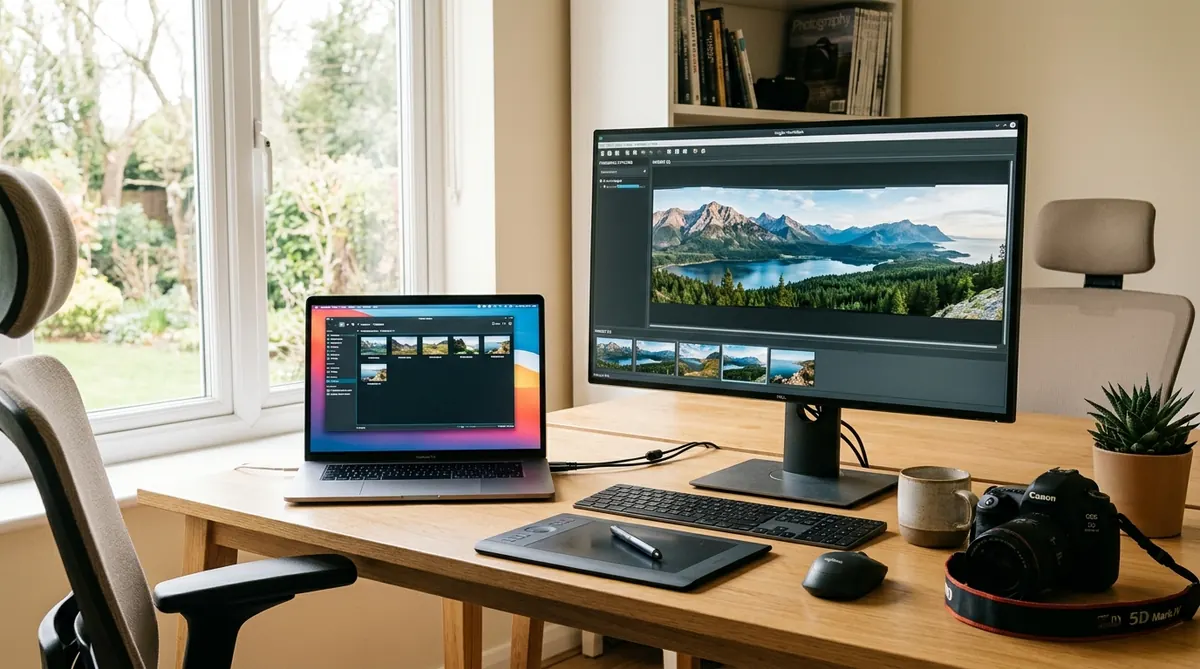
- Import Image Sequence: Click Select Images or drag and drop your overlapping JPEG or TIFF files directly into the left workspace panel.
- Execute Detection: Click the green Detect button. Autopano Giga will automatically run feature detection, analyze lens focal lengths, and generate a panoramic preview thumbnail in the right panel.
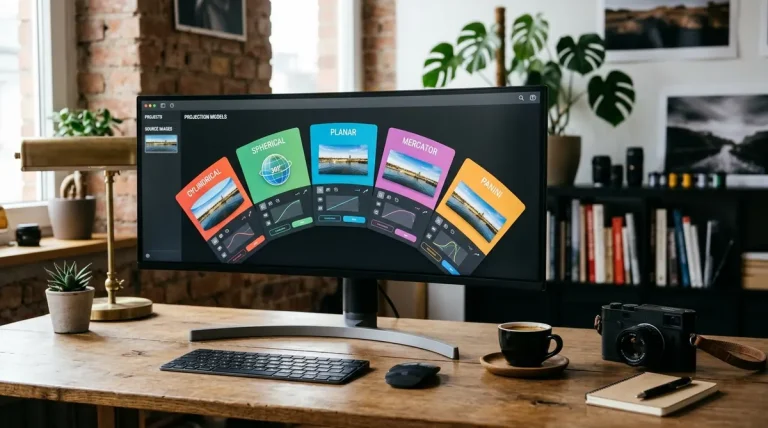
- Open the Panorama Editor: Double-click the preview thumbnail or click the Edit icon. In the visual editor, verify horizon leveling using the horizontal vanishing line tool, and adjust projection geometry (Spherical, Cylindrical, or Mercator).
- Export Full Resolution: Click the gear icon (Render). Select your output format (JPEG at 95% quality or 16-bit TIFF for fine art prints), choose the maximum rendered resolution, set anti-ghosting blending to Smartblend, and click Render.
How to Bypass RAW Compatibility Limits on Abandoned Software
Because free abandonware tools like Autopano Giga 4.4.2 and Microsoft ICE were released before 2019, they do not recognize newer RAW camera extensions (such as Canon CR3, Sony compressed ARW, or Nikon High Efficiency NEF). To overcome this limitation while preserving full dynamic range, follow our proven three-step RAW conversion pipeline:
- Step 1 — Batch Convert to 16-bit TIFF: Open your raw photos in Adobe Lightroom, Camera Raw, or free open-source Darktable / RawTherapee. Export the sequence as uncompressed 16-bit TIFF files in ProPhoto RGB or Adobe RGB color space.
- Step 2 — Maintain Consistent Exposure and White Balance: Ensure that all bracketed shots share synchronized white balance (Kelvin), tint, and lens vignette corrections before export. Do not use “Auto Tone” across individual shots.
- Step 3 — Feed TIFFs into Autopano Giga: Import the 16-bit TIFF sequence into Autopano Giga. The software will process the uncompressed 16-bit color channels with pristine dynamic range, completely bypassing camera RAW format obsolescence. Read our complete guide to importing RAW files into Autopano Giga for detailed step-by-step instructions.
Frequently Asked Questions
Is Autopano Giga really free to use in 2026?
Yes. When GoPro discontinued the Kolor product line in September 2018, they officially published universal registration keys for Autopano Giga 4.4.2 and Autopano Pro. Anyone can download the official installers and unlock full, unlimited gigapixel and 360-degree stitching without watermarks or expiration dates.
Which free software is best for 360-degree virtual tour panoramas?
Both Autopano Giga 4.4.2 and Hugin can export full 2:1 ratio 360° × 180° equirectangular panoramas without watermarks. Autopano Giga offers automated detection and faster multi-row alignment, while Hugin provides granular control point adjustments to eliminate complex nadir and zenith parallax errors.
Does Microsoft ICE still work on Windows 11?
Yes. Although Microsoft discontinued ICE in 2021, the 64-bit installer (version 2.0.3) runs reliably on Windows 11. It remains one of the fastest free tools for linear and cylindrical landscape panoramas, featuring an automatic Image Completion tool that uses patch-based synthesis to fill in empty border edges.
How do I stitch RAW photos from new cameras in older free stitchers?
Legacy free stitchers like Autopano Giga 4.4.2 and Microsoft ICE do not natively support modern RAW camera profiles (such as Sony ARW, Canon CR3, or Nikon NEF). The recommended professional workaround is converting your RAW files into 16-bit TIFFs using Adobe DNG Converter, Lightroom, or Capture One prior to stitching to preserve maximum dynamic range.
Why do professionals pay for PTGui Pro if free tools are available?
While free tools like Autopano Giga and Hugin deliver outstanding image quality, commercial software like PTGui Pro offers full GPU acceleration (stitching 100+ megapixel panoramas in seconds), native support for the latest camera RAW formats, active software updates for new OS versions, and automated viewpoint correction for handheld nadir tripod removal.