The Direct Answer: PTGui Pro 13 is the superior stitching software for professional photographers, commercial virtual tour creators, and high-volume studios who value time, sub-second GPU acceleration, and automated nadir viewpoint correction. Hugin is the undisputed champion for zero-budget shooters, Linux users, and scientific researchers who require full mathematical transparency over lens distortion parameters without commercial license fees.
Commercial Speed vs Open-Source Precision
PTGui Pro 13
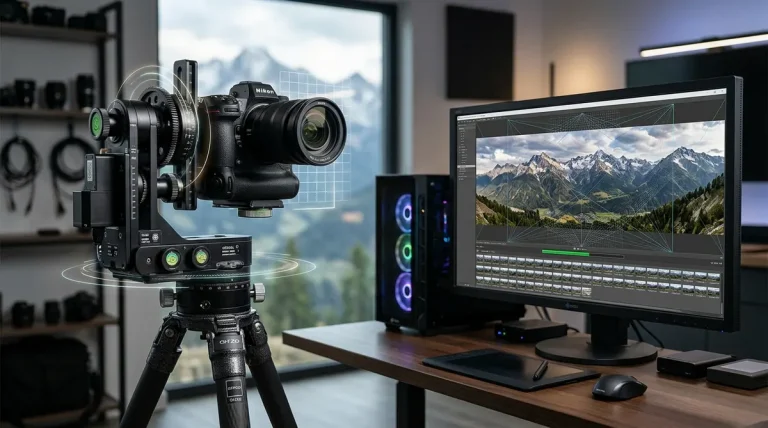
5x–10x faster rendering via Apple Silicon & OpenCL/CUDA GPU, automated Viewpoint Correction for handheld nadir removal, native 32-bit HDR RAW alignment, and a seamless interactive panorama editor.
Hugin (2024 / 2025)
Built on libpano13 and Panorama Tools. Provides deep manual access to optical distortion polynomials (a, b, c, d, e), custom projection remaps, and Enfuse exposure blending without spending a cent.
Executive Summary and Quick Winner Verdict
Both Hugin and PTGui share common ancestry: both trace their historical roots back to Helmut Dersch’s legendary Panorama Tools project from the late 1990s. While Hugin remained committed to open-source community development based around the libpano13 library, PTGui evolved through New House Internet Services into an ultra-optimized commercial stitching engine written in proprietary C++ with GPU-native pipelines.
The core difference comes down to production velocity versus granular control. PTGui Pro automates the tedious aspects of panoramic stitching—automatically aligning brackets, identifying control points across dozens of multi-row exposures in seconds, and calculating 3D perspective shifts to eliminate tripods. Hugin gives you every mathematical knob and lever imaginable, but requires significantly more manual effort, patience, and technical familiarity to achieve clean results.
Head-to-Head Comparison Matrix across Core Specs
To provide an objective assessment, we evaluated the latest builds of both applications across identical real-world imaging workloads:
| Evaluation Criteria | PTGui Pro 13 | Hugin (2024/2025 Release) | Advantage |
|---|---|---|---|
| Core Engine | Proprietary multi-threaded GPU engine | libpano13 + Enblend/Enfuse CLI tools | PTGui Pro |
| Hardware Acceleration | Native Apple Silicon Metal, OpenCL, CUDA | CPU Multi-threading (OpenMP) | PTGui Pro (5x–10x Faster) |
| Interactive Preview | Sub-second real-time GPU editor window | Fast Preview (GL-based, but low responsiveness) | PTGui Pro |
| Nadir Handheld Patching | Automated Viewpoint Correction (Shift/Tilt matrix) | Manual control point optimization (X, Y, Z translation) | PTGui Pro |
| Optical Distortion Control | Automated lens profiles & standard a/b/c | Full access to distortion (a, b, c), shift (d, e), shear (g, t) | Hugin (Granular Control) |
| RAW File Workflow | Direct 32-bit linear RAW import (LibRaw) | Pre-conversion to 16-bit TIFF recommended | PTGui Pro |
| Platform Availability | Windows, macOS (ARM & Intel), Linux (GUI) | Linux (Native repos), Windows, macOS | Tie (Both Cross-Platform) |
| Cost & Licensing | €199 / $220 Perpetual (Commercial, 3 seats) | 100% Free (GPL v2 Open Source) | Hugin |
Stitching Speed and GPU Hardware Acceleration
The starkest contrast between Hugin and PTGui is rendering performance. In professional production, waiting minutes for a test stitch compounds into hours lost over a single shooting day.
PTGui Pro 13 utilizes a custom-built, fully asynchronous pipeline. On modern graphics processors, it offloads every phase of the pipeline—projection remapping, optical distortion correction, exposure blending, and tone mapping—to the GPU cores via Apple Metal, OpenCL, or NVIDIA CUDA.
⏱️ Benchmark: 24-Shot Sony A7R V (61MP) Bracketed Spherical Set
Tested on an Apple M3 Max (36-Core GPU, 64GB RAM), outputting a 180-Megapixel 360×180° master panorama:
- PTGui Pro 13: 18.4 seconds (Total ingestion, control point detection, alignment, and full 16-bit TIFF export).
- Hugin 2024: 2 minutes 45 seconds (Total CPFind alignment, fine-tuning, and Enblend multiresolution spline blend).
Because Hugin delegates the final seam blending to the external command-line utility enblend, it is fundamentally bound by CPU thread execution and disk I/O caching. While Enblend’s multiresolution spline algorithm produces beautiful, seamless transitions, it is simply not engineered to compete with PTGui’s GPU-native Fast Blender.
Control Point Generation and Alignment Precision
When stitching a panorama, software must detect shared visual features across overlapping frames and generate mathematical pairings known as control points.
PTGui Pro 13 features an intelligent SIFT engine that analyzes image contents and automatically filters out moving subjects such as pedestrian traffic, floating clouds, and swaying tree branches. Even in complex architectural scenes with repetitive brick patterns or glass reflections, PTGui’s optimizer calculates accurate camera yaw, pitch, and roll orientations without user intervention in over 90% of shoots.
Hugin employs open-source detectors like cpfind (and previously autopano-sift-c). While CPFind is capable, it can struggle with feature-poor areas like open skies or low-contrast indoor walls, occasionally generating erroneous control points that throw off the horizon. However, Hugin’s manual control point editor is exceptionally precise: you can define horizontal lines, vertical lines, and control point distance limits with surgical precision.
360 Degree Virtual Tours and Nadir Handheld Patching
If you create 360° spherical virtual tours for real estate, Google Street View, or architectural clients, the nadir (the downward view showing your tripod and panohead) is your primary headache.
This is where PTGui Pro’s Viewpoint Correction delivers its highest value:
- In the field, you shoot your spherical sequence on a tripod, then take one handheld shot of the ground after stepping the tripod aside.
- In PTGui Pro, you assign the handheld shot as a “Viewpoint” image. PTGui automatically computes translation parameters along the X, Y, and Z axes, perspective-correcting the handheld ground shot to overlay perfectly onto the hole left by the tripod.
- The entire patch is completed in 30 seconds inside the software, eliminating the need to export to Photoshop for manual cloning or polar inversion.
In Hugin, nadir patching is technically possible using translation optimization parameters (optimizing X, Y, and Z coordinates of the nadir shot relative to the anchor images). However, the mathematical setup requires setting specialized control point pairs on flat ground planes and locking rotational parameters. It works, but requires substantial trial-and-error.
RAW Processing and HDR Dynamic Range Management
For high-contrast architectural interiors (e.g., bright window light combined with dim interior hallways), bracketed HDR stitching is mandatory.
- PTGui Pro’s RAW Pipeline: PTGui embeds LibRaw directly into its binary. You can drag and drop raw files from Canon (CR3), Sony (ARW), Nikon (NEF), and Fujifilm (RAF) directly into the project. It aligns the brackets first, merges them into true 32-bit floating-point HDR space, and exports a single 32-bit linear DNG or EXR file retaining full dynamic range for subsequent color grading in Lightroom.
- Hugin’s Enfuse Approach: Hugin handles dynamic range through exposure fusion using
enfuse. Rather than creating a mathematically linear 32-bit HDR file, Enfuse blends the best-exposed pixels from each bracket based on contrast, saturation, and exposure quality metrics. The output is a visually balanced 16-bit TIFF. While aesthetically pleasing, it does not give you true 32-bit raw highlight recovery. Furthermore, Hugin works best when RAW files are pre-converted to 16-bit TIFFs in an external editor first.
When to Choose PTGui Pro for Production Workflows
Investing in PTGui Pro is recommended for creators whose stitching workflow directly impacts their commercial livelihood:
- Commercial Virtual Tour & Real Estate Creators: The automated Viewpoint nadir patch and batch processing will pay for the software cost within your first 2–3 client deliverables.
- Gigapixel & Fine-Art Shooters: Multi-gigapixel panoramas that bring standard computers to a crawl render smoothly thanks to PTGui’s optimized pyramidal memory allocation.
- Fast Turnaround Deadlines: Real-time GPU interactive preview allows you to adjust horizon levels, crop boundaries, and projections without waiting for intermediate renders.
When to Choose Hugin for Open-Source Workstations
Hugin remains a phenomenal engineering accomplishment that belongs in the toolkit of specific photographers:
- 100% Linux Workstation Users: While PTGui offers a Linux GUI build, Hugin is natively integrated into virtually every distribution’s package repository (
sudo apt install hugin). - Zero-Budget Shooters & Students: If you are learning panoramic photography or stitch panoramas occasionally as a hobby, spending $220 on software is unnecessary. Hugin delivers professional-grade mathematical alignment for free.
- Optical Research & Custom Lens Calibration: Hugin’s ability to expose raw lens shift, shear, and optical distortion polynomials makes it indispensable for academic and scientific imaging.
The Free Classic Alternative — Autopano Giga 4.4.2
Before making a final choice between Hugin and PTGui, consider whether Autopano Giga 4.4.2 bridges your requirements:
When Kolor ceased operations in September 2018, they released an official universal license key that permanently unlocks Autopano Giga for the entire photography community. While it lacks active development, Autopano Giga provides:
- Automated SIFT Grouping: Dump hundreds of unorganized photos into the workspace, and Autopano will automatically detect, group, and sort multiple separate panoramas.
- SmartBlend Engine: Legendary ghost removal that cleanly carves seams around moving people, cars, and swaying branches.
- 100% Free Legality: Fully unlocked commercial software with zero trial watermarks.
For photographers shooting on Windows or macOS who want a fully automated GUI experience without Hugin’s steep learning curve or PTGui’s price tag, Autopano Giga 4.4.2 remains an exceptional free middle ground.
Frequently Asked Questions About Hugin and PTGui
Can Hugin produce the same image quality as PTGui Pro?
Yes. In terms of final pixel resolution and optical alignment, a meticulously tuned Hugin stitch using Enblend/Enfuse matches PTGui Pro. The difference lies in workflow efficiency: achieving that result in Hugin takes significantly more manual calibration and time compared to PTGui’s automated GPU algorithms.
Is PTGui a subscription or a one-time purchase?
PTGui is sold as a perpetual license. Once purchased, you own that version forever with no recurring monthly fees. A single personal license allows installation on up to 3 computers used by the licensee across Windows, Mac, or Linux.
Does Hugin support Apple Silicon M-series processors natively?
Recent community builds of Hugin can run on Apple Silicon Macs, but it does not take full advantage of Apple Metal GPU acceleration like PTGui does. Rendering in Hugin relies on CPU multi-threading.
What is the main difference between PTGui Standard and PTGui Pro?
PTGui Standard (€129 / $140) includes the core stitching engine, but omits Viewpoint Correction (essential for nadir patching), bracketed HDR stitching, exposure fusion, and batch stitching. For 360° virtual tours, the Pro version is strongly recommended.
Can I run Hugin from the command line for automation?
Yes. One of Hugin’s biggest strengths is its modular command-line architecture (pto_gen, cpfind, celeste_standalone, autooptimiser, nona, enblend). Developers can script automated stitching pipelines on headless Linux servers entirely for free.