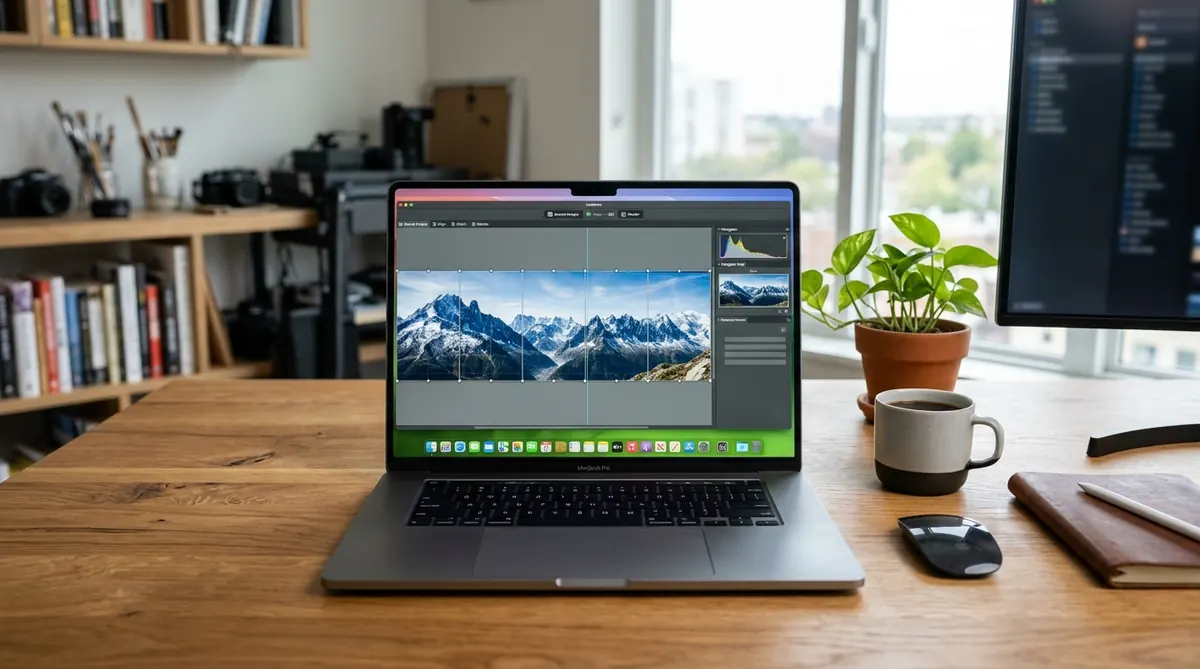
If you have recently switched to a new Mac or updated your operating system to macOS Sonoma or macOS Sequoia, you might assume that Autopano Giga 4.4.2 — discontinued by GoPro in 2018 — is impossible to run. Many photographers encounter an immediate “Installation Failed” prompt or a Gatekeeper security warning declaring that the package is “damaged and cannot be opened.”
The Fast Answer: Yes, Autopano Giga 4.4.2 runs exceptionally well on modern Macs, including Intel machines and all Apple Silicon processors (M1, M2, M3, and M4) via Apple’s Rosetta 2 translation environment. The secret to a 100% successful installation is a single step: during the installer wizard, click Customize and uncheck the legacy Adobe Lightroom and Photoshop plugins. This single adjustment prevents the installer from crashing. Once installed, unlock full functionality using the official universal public license key.
- 1. macOS Version and Hardware Compatibility Matrix
- 2. Step-by-Step Installation Guide for Apple Silicon and Intel Macs
- 3. Fixing the Infamous Installation Failed Error on Modern macOS
- 4. Bypassing macOS Gatekeeper and Damaged App Warnings via Terminal
- 5. Optimizing Performance and Memory Allocation Under Rosetta 2
- 6. When to Consider Modern Native Apple Silicon Alternatives
- 7. Frequently Asked Questions
macOS Version and Hardware Compatibility Matrix
Because Autopano Giga was engineered as a 64-bit application, it never suffered from Apple’s infamous macOS Catalina 32-bit purge. However, modern macOS security layers and Apple Silicon ARM architecture require specific configurations:
| macOS Release | Apple Silicon (M1 / M2 / M3 / M4) | Intel Hardware (Core i5 / i7 / i9) | Required Setup Configuration |
|---|---|---|---|
| macOS 15 Sequoia (2024–2026) | Fully Compatible via Rosetta 2 | Fully Compatible (Native x86_64) | Uncheck Adobe plugins; approve via Security settings |
| macOS 14 Sonoma | Fully Compatible via Rosetta 2 | Fully Compatible (Native x86_64) | Uncheck Adobe plugins; clear quarantine attribute |
| macOS 13 Ventura | Fully Compatible via Rosetta 2 | Fully Compatible (Native x86_64) | Uncheck Adobe plugins during customized installation |
| macOS 12 Monterey | Fully Compatible via Rosetta 2 | Fully Compatible (Native x86_64) | Standard customized installation |
| macOS 10.15 Catalina – 11 Big Sur | Compatible via Rosetta 2 | Fully Compatible (Native x86_64) | Standard customized installation |
Step-by-Step Installation Guide for Apple Silicon and Intel Macs
Follow this exact sequence to install Autopano Giga 4.4.2 cleanly without encountering installer aborts or registration loops:
1 Download the Verified Mac Installer Package
Download the official DMG installer (AutopanoGiga_Mac_442_2018-04-12.dmg) from our secure official download archive. Do not download unofficial repackaged ZIPs from file-sharing mirrors, which may contain adware or corrupted binaries.
2 Ensure Rosetta 2 Is Installed (Apple Silicon Only)
If your Mac is powered by an Apple Silicon M-series chip, macOS will prompt you to install Rosetta 2 when launching an Intel application for the first time. If you prefer to install it manually via the command line, open Terminal and execute:
3 Run the Installer Wizard
Double-click the mounted DMG disk image and open the PKG installer. Advance through the Introduction and License Agreement screens.
4 Customize Components (The Critical Step)
When you reach the Installation Type screen, click the Customize button in the lower-left corner. In the component list, uncheck all checkboxes under Adobe Lightroom and Photoshop Plugins. Leave only the core Autopano Giga Application checked. Click Install.
5 Register with the Public Universal Key
Launch Autopano Giga from your Applications folder. In the top macOS menu bar, navigate to Autopano Giga → Registration (or Help → Register). Copy and paste the official universal user credentials from our license key directory and click OK. The software is now permanently unlocked with zero watermarks.
Fixing the Infamous Installation Failed Error on Modern macOS
Over 90% of Mac users attempting to install Autopano Giga encounter an abrupt red exclamation mark stating “The Installer encountered an error that caused the installation to fail.”
Why the Error Occurs
Back in 2018, Kolor bundled helper plugins designed to integrate with Adobe Photoshop CC 2018 and Lightroom Classic 7. During installation, the Kolor installer script attempts to search for directory paths like /Library/Application Support/Adobe/Lightroom/Modules/.
On modern versions of macOS (Sonoma and Sequoia), these legacy path structures either do not exist or are protected by Apple’s System Integrity Protection (SIP). When the installer script fails to find or write to those Adobe directories, the entire installer script aborts with a fatal status code.
The Solution
The core Autopano Giga standalone application does not depend on those plugins at all. By clicking Customize on the Installation Type screen and unchecking the Adobe plugin modules, the installer script completely bypasses those missing paths and installs the standalone app into /Applications in under five seconds.
Bypassing macOS Gatekeeper and Damaged App Warnings via Terminal
Modern macOS security policies (Gatekeeper) aggressively flag software released prior to Apple’s notarization requirements (instituted in 2020). When launching Autopano Giga for the first time, you may receive one of two warnings:
- “Autopano Giga cannot be opened because Apple cannot check it for malicious software.”
- “Autopano Giga is damaged and cannot be opened. You should move it to the Trash.”
Method A — Approve via System Settings
When the dialog appears, click Cancel. Open System Settings → Privacy & Security. Scroll down to the Security section. You will see a notice stating: “Autopano Giga was blocked from use because it is not from an identified developer.” Click Open Anyway, enter your administrator password, and click Open in the subsequent prompt.
Method B — Clear Quarantine Attribute via Terminal
If macOS declares that the app is “damaged,” Gatekeeper has applied an extended quarantine attribute to the app bundle. To strip this quarantine flag completely, open Terminal (found in Applications → Utilities) and enter the following command:
Press Return, enter your Mac user password (characters will not display on screen), and press Return again. The quarantine flag is stripped immediately, and Autopano Giga will launch cleanly on subsequent clicks.
Optimizing Performance and Memory Allocation Under Rosetta 2
Many creators worry that running an Intel application through Rosetta 2 will introduce severe lag. In reality, because Apple Silicon chips feature immense memory bandwidth and high single-core IPC, Autopano Giga executes multi-threaded SIFT feature matching and blending significantly faster than on older Intel MacBook Pros.
To ensure optimal stability when stitching large gigapixel or HDR sequences on Mac, configure these settings in Autopano Giga (Preferences → General):
- Thread Count: Set the thread allocation to match your physical performance cores. For example, on an M2 Pro with 8 performance cores and 4 efficiency cores, set the thread count to 8 or 10.
- Disable Deprecated OpenCL GPU: In Preferences → GPU, ensure that OpenCL acceleration is disabled. Because Apple Silicon does not emulate vintage OpenCL 1.2 GPU pipelines, forcing GPU mode can cause render stalls. Relying entirely on Apple Silicon CPU multithreading delivers superior stability and speed.
- RAM Memory Cache: In Preferences → Memory, allocate 60% to 70% of your unified memory to Autopano Giga (e.g., 10 GB on a 16 GB Mac, or 24 GB on a 36 GB Mac).
When to Consider Modern Native Apple Silicon Alternatives
While Autopano Giga 4.4.2 remains completely usable for free, professional commercial photographers whose livelihood depends on rapid daily turnarounds should evaluate modern alternatives:
| Workflow Requirement | Autopano Giga (Rosetta 2) | PTGui Pro (Native Apple Silicon) |
|---|---|---|
| Apple Silicon Architecture | x86_64 translated via Rosetta 2 | Native ARM64 universal binary with Apple Metal GPU acceleration |
| Modern Camera RAW Decoding | Requires pre-converting RAW to 16-bit TIFF via Adobe DNG Converter | Direct native import for latest Sony ARW, Canon CR3, and Nikon Z NEF |
| Operating System Support | Legacy 2018 software running via community workarounds | Actively maintained with immediate updates for new macOS major releases |
| Viewpoint Correction (Nadir) | Manual masking or external retouching | Built-in computational viewpoint shifting for handheld nadir tripod removal |
| Pricing Model | $0 (Free via public license key) | €319 one-time perpetual license |
Frequently Asked Questions
Does Autopano Giga 4.4.2 run on Apple Silicon M1, M2, M3, and M4 Macs?
Yes. Autopano Giga 4.4.2 runs smoothly across all Apple Silicon processors via Apple’s Rosetta 2 translation layer. Because panorama stitching relies heavily on CPU multi-threading, the performance overhead under Rosetta 2 is negligible, and stitching times on an M2/M3 MacBook Pro are frequently faster than on vintage Intel workstations.
Why does the macOS installer display an “Installation Failed” message?
The “Installation Failed” error is caused by the bundled 2018 Adobe Photoshop and Lightroom export plugins trying to write to system directories that no longer exist on modern macOS. To resolve this instantly, run the installer, click “Customize” on the Installation Type screen, and uncheck all Adobe plugins. The standalone Autopano Giga app will then install cleanly in seconds.
How do I bypass the macOS warning stating the app is damaged or from an unidentified developer?
When macOS Gatekeeper blocks legacy installers, open Terminal (Applications > Utilities > Terminal) and run the command: sudo xattr -cr /Applications/Autopano\ Giga\ 4.4.app (or on the installer package). This clears Apple’s quarantine extended file attribute and allows the application to launch normally.
Where does Autopano Giga store its registration keys and preferences on Mac?
Autopano Giga stores registration and preference data in the macOS user preferences directory at ~/Library/Preferences/com.kolor.AutopanoGiga44.plist. If the app fails to remember your registration key, ensure your user account has write permissions to this preference file.
Is there a native Apple Silicon version of Autopano Giga?
No. Kolor was closed by GoPro in September 2018, two years before Apple introduced Apple Silicon hardware. Autopano Giga will remain an x86_64 Intel application. If you require a native Apple Silicon binary with full Metal GPU acceleration and active development, PTGui Pro is the industry-standard modern upgrade.